Appearance
The Appearance tab offers several options to customize your device, including:
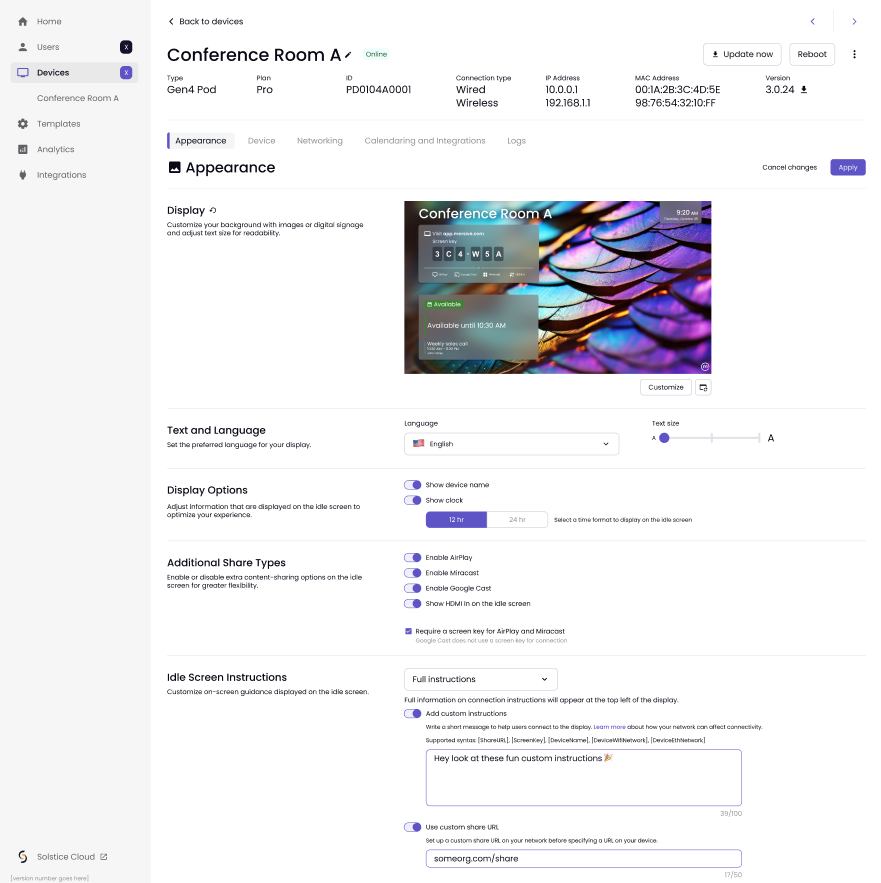
Display
First is the Display section, where you can customize your background with images or digital signage and adjust other settings, such as text size.
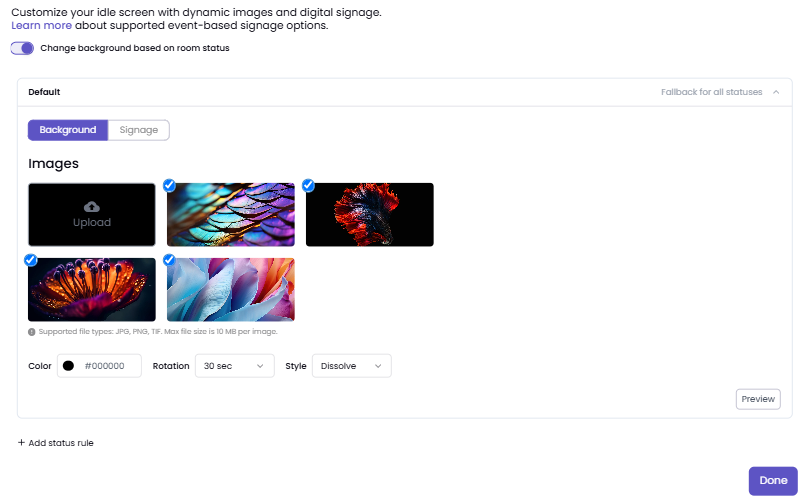
When you click the Customize button, the Idle Screen Customization page opens. This page allows you to customize your idle screen with dynamic images or digital signage. When you're done, select the purple Apply button in the upper right.
Your first choice here is whether you want static background images or digital signage.
Note
This option will be considered your default screen customization, which is important for Status-Based Signage, if you choose to use it.
For background images, you can upload your own images, use the provided ones, or choose a plain color background. For consistency, add custom or branded images that represent your organization.
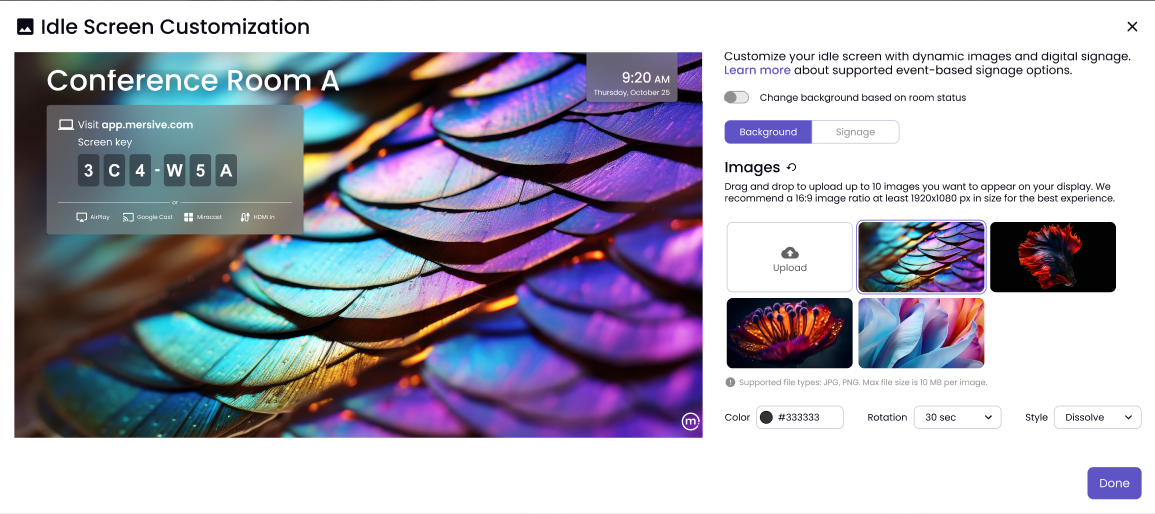
Here are a few guidelines for background images:
File formats | JPG, PNG, TIF |
Preferred image ratio | 16:9 |
Preferred resolution | 1920x1080 pixels |
File size | No larger than 10MB each |
Number of image files | 10 maximum |
You can also adjust the:
Color - If choosing a solid background
Rotation - How often the backgrounds change: 30, 60, or 90 seconds
Style - The transition between images: None, Push, Dissolve
When finished, select Done to exit the Idle Screen Customization page.
For digital signage, toggle the option to Signage. You can now enter your Signage URL.
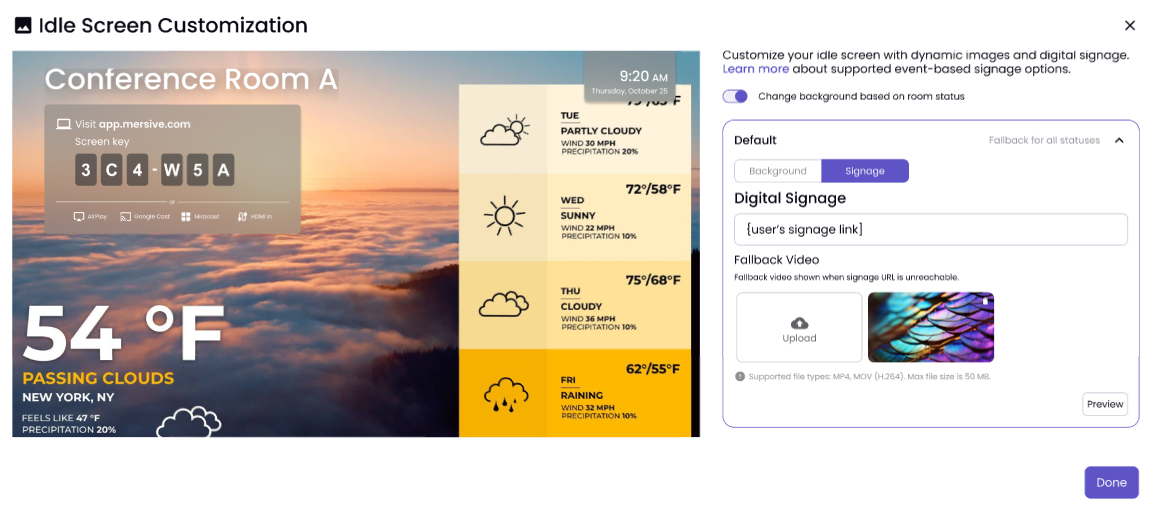
Under the link box, you can choose a Fallback Video, which is shown when the URL is unreachable. You can upload your own video or use the provided one. If you use your own, supported file types are MP4 and MOV (H.264), and the maximum file size is 50 MB.
In the bottom right, you can choose Preview Signage to preview your URL and make sure it is working.
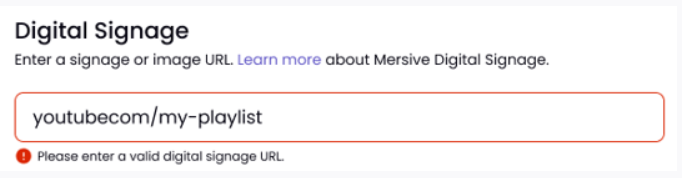
If the URL does not work with the digital signage, you will see an error message.
When finished, select Done to exit the Idle Screen Customization page.
You can set the background/signage to change based on statuses, which is also called event-based signage. The events are based on the room status of booked, not booked, or cannot be booked, which is set by your organization's calendar.
To enable status-based signage, toggle Change background based on room status to the right to turn it on. It will display your default screen customization first (your fallback for all statuses), with Add a status rule under it.
Once you click Add a status rule, select the status next to Show When.
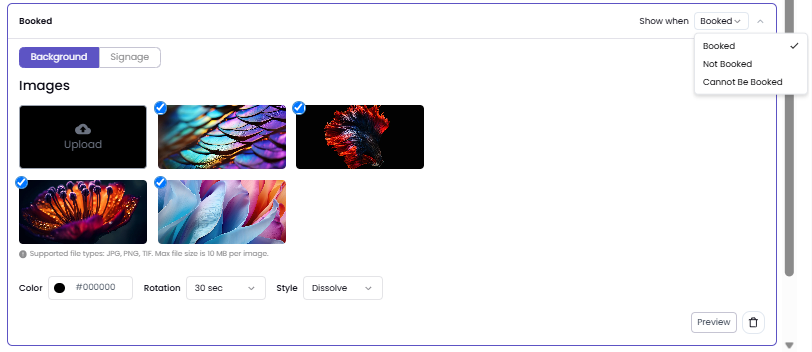
Then, choose the Background or Signage based on your needs. You can add additional rules by selecting Add a status rule underneath.
Note
To delete a rule, click the Trash Can icon within the rule.
When finished, select Done to exit the Idle Screen Customization page.
Additional Display Settings
Under Display Options, you can adjust the information displayed on the idle screen:
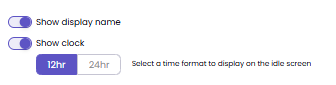
Both are "on" by default, and the clock defaults to 12-hour.
Under Additional Share Types, you can enable or disable extra content-sharing options on the idle screen for greater flexibility:
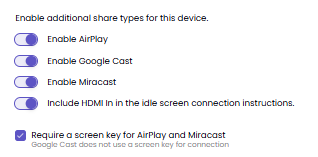
For additional instructions on sharing, see Connect and Share.
Use Custom Instructions to display a custom message on the Idle Screen (up to 100 characters). This setting helps provide connection guidance, such as instructing users to switch networks before connecting when devices are on separate networks or when network isolation is enabled. You can choose where instructions appear:
Full Instructions: Displays the complete message in the upper-left corner.
Footer Only: Displays a short message along the bottom of the screen.
Never Show: Hides all instructions.
Note
For digital signage, Footer Only and Never Show maximize screen space and reduce interference with images and videos; however, users may not see the information needed to connect and share.