Sharing Tips & Tricks
The sharing client was designed to be quick to connect and easy to use. But it also contains advanced features to meet specific collaborative needs. This section contains information designed to help you get the most out of your collaboration sessions.
As previously mentioned, the sharing client gives you three categories of content. Each sharing option has its own unique features:
Browser Tab
Window
Entire Screen
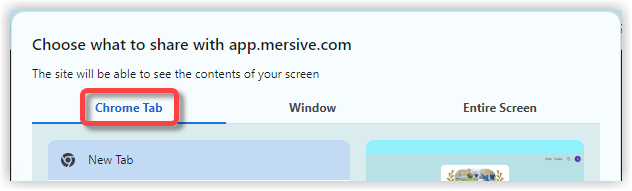
Browser Tab includes all the tabs open in the browser that is running the sharing client. In some cases, you can share audio (see below) from a browser tab share. On the display, you will see the browser content only; the navigation bar and menu bar at the top of the browser window will not be displayed. If you have more than one type of browser open, Chrome and Firefox, for example, the other browser will appear in the Window category.
Tip: Forget which browser is running the sharing client? Check the tab title on the client interface.
 |
Window includes all the windows open on your laptop. Currently, there are no audio sharing options from a window share. When sharing a window, it will continue to appear on the display even if you minimize it on your laptop.
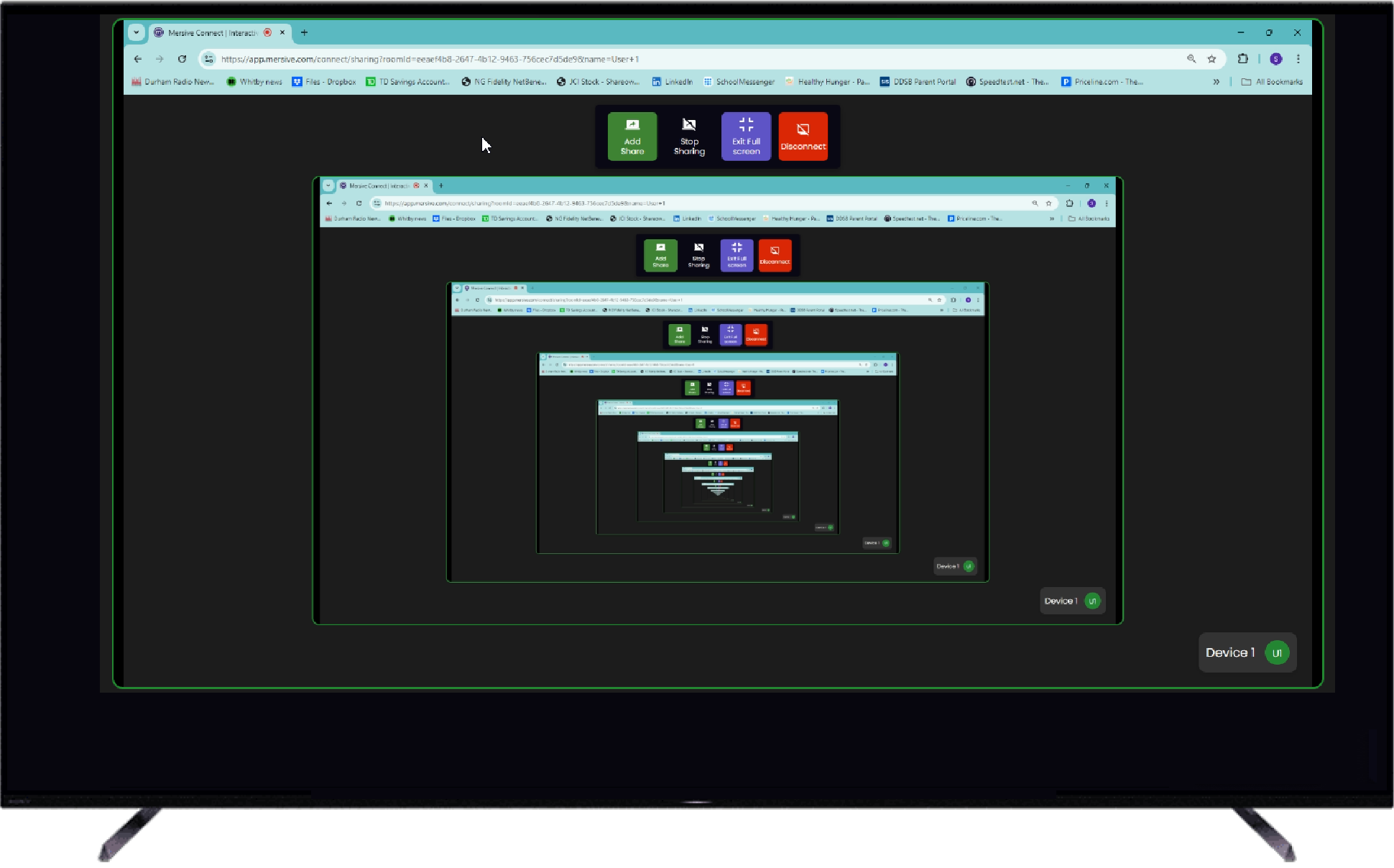
Tip: If you see the sharing client buttons on the display, you’re probably sharing the sharing client window itself. This is what it looks like:
 |
Entire Screen includes every monitor or screen attached to your laptop. While sharing an entire screen does have some audio sharing options, they are very limited.
Tip: Sharing an entire screen is a quick way to get content up on the display, but for advanced tasks, like sharing full motion video with audio, Browser Tab sharing is a better way to go.