How to Connect and Share to a Display
To connect your laptop to a display and share content using the Mersive web client, take the following steps:
Open a web browser and go to app.mersive.com. The Connect screen appears.
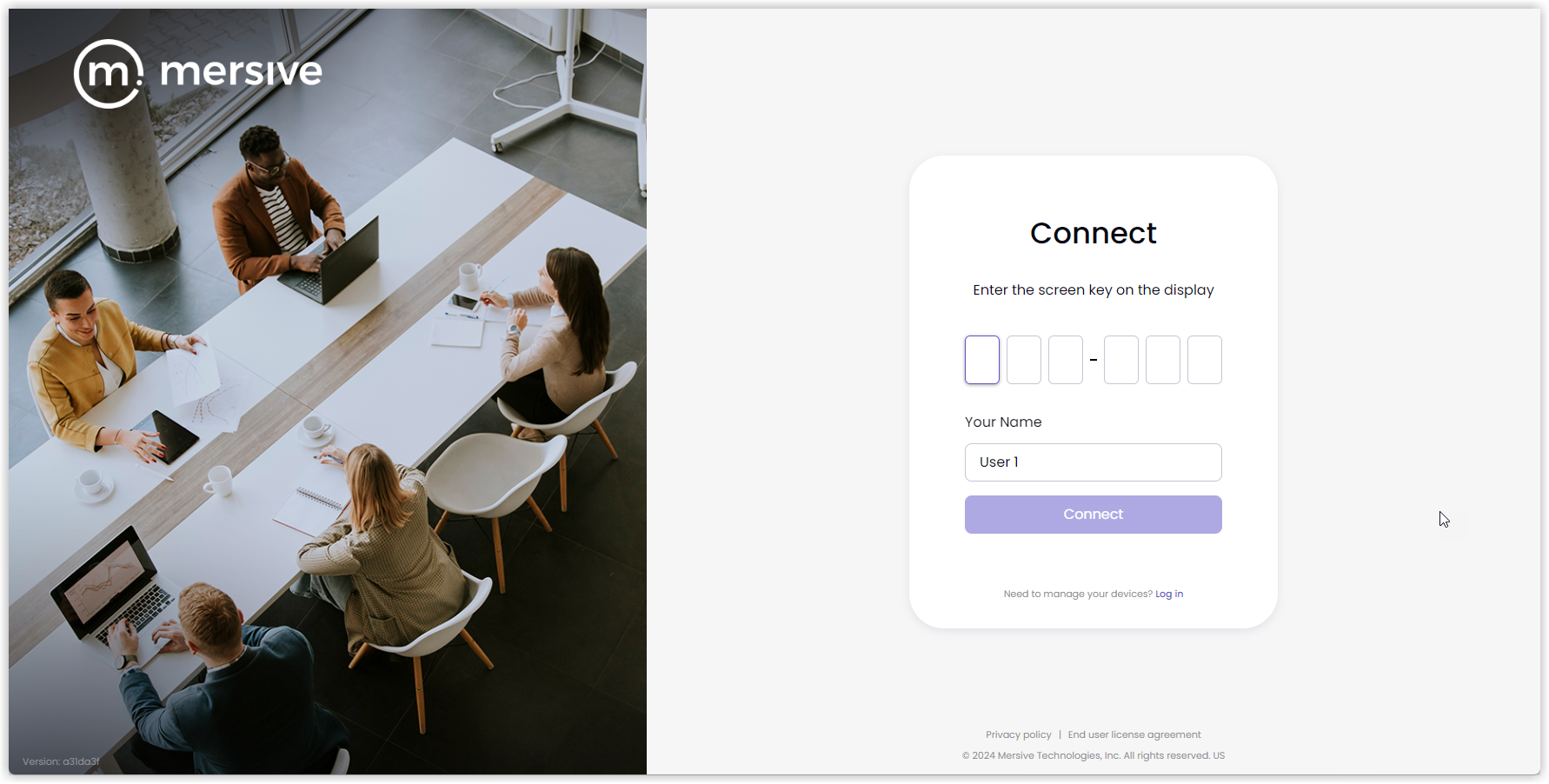
Enter the Screen key from the display and Your Name and then click Connect. The sharing client verifies the connection.
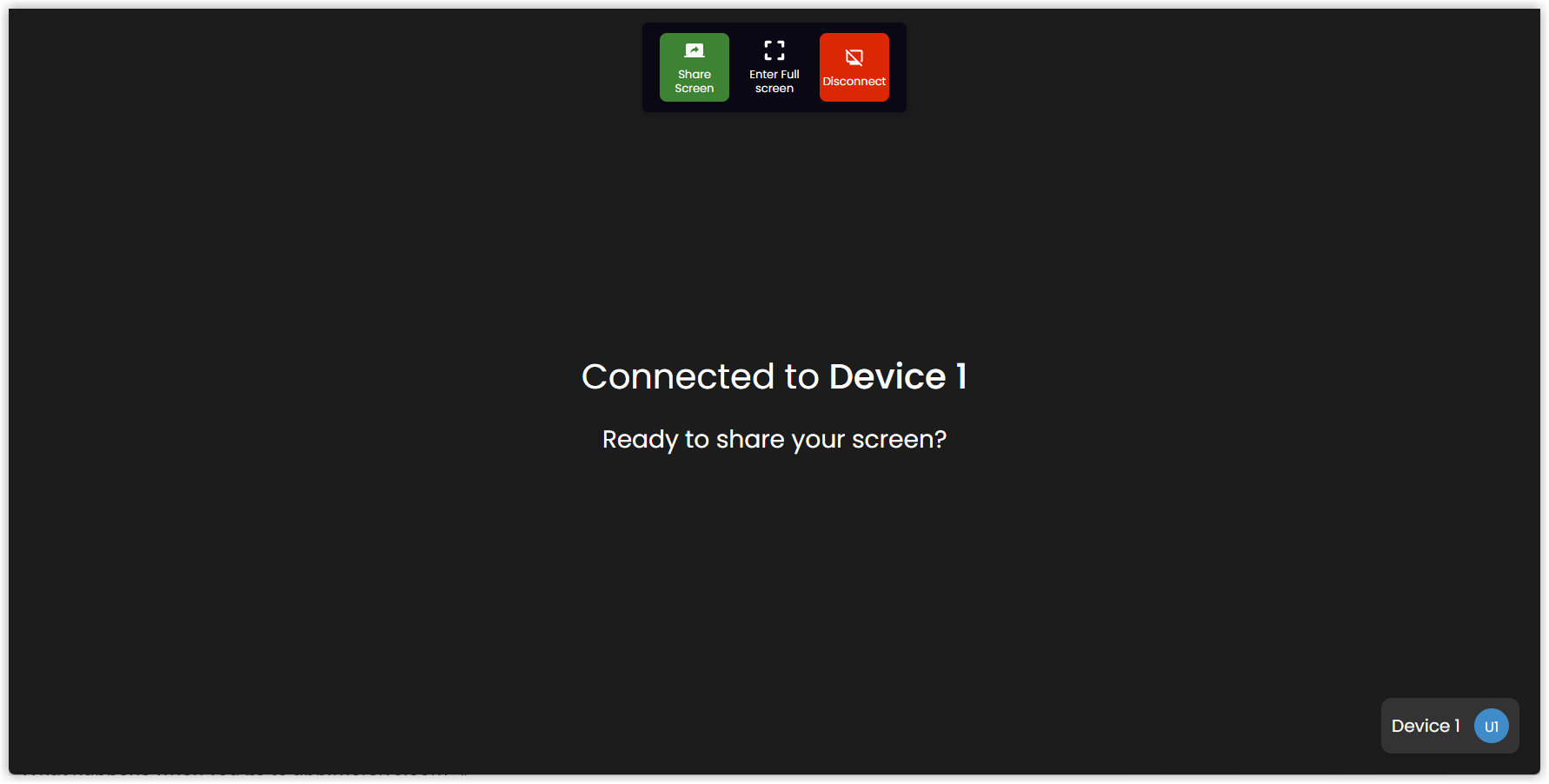
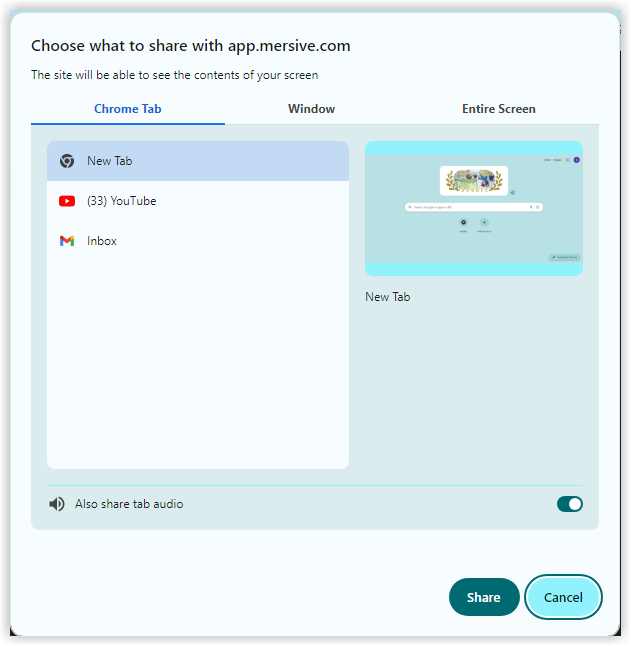
Click Share Screen and select content to share from the Browser Tab, Window, or Entire Screen lists, then click Share. Note: To share audio, select the Also share audio option. For more information about sharing audio, see below.
The content appears on the display. Note: The view on the sharing client may look different than the display.
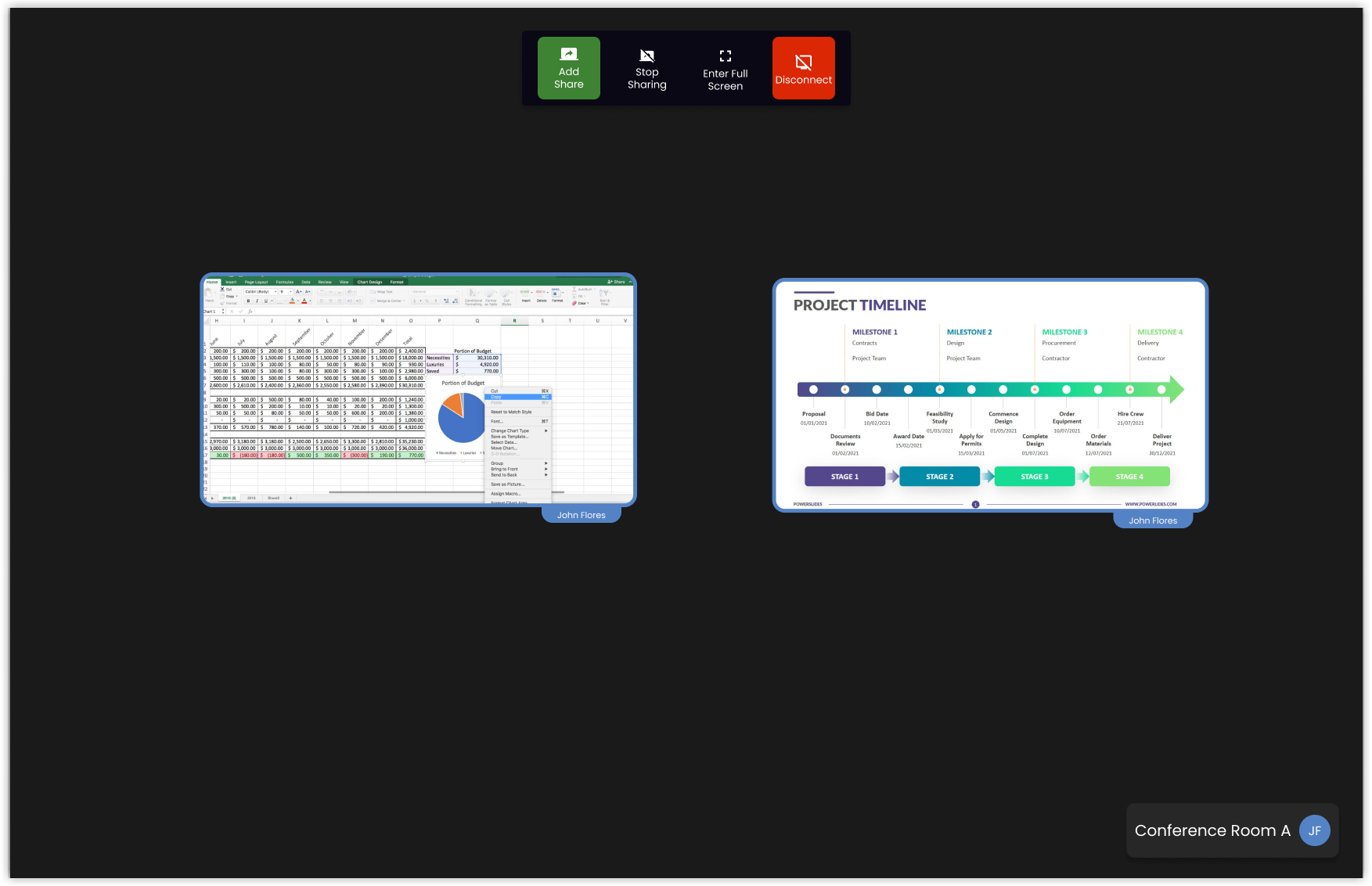
Laptop view
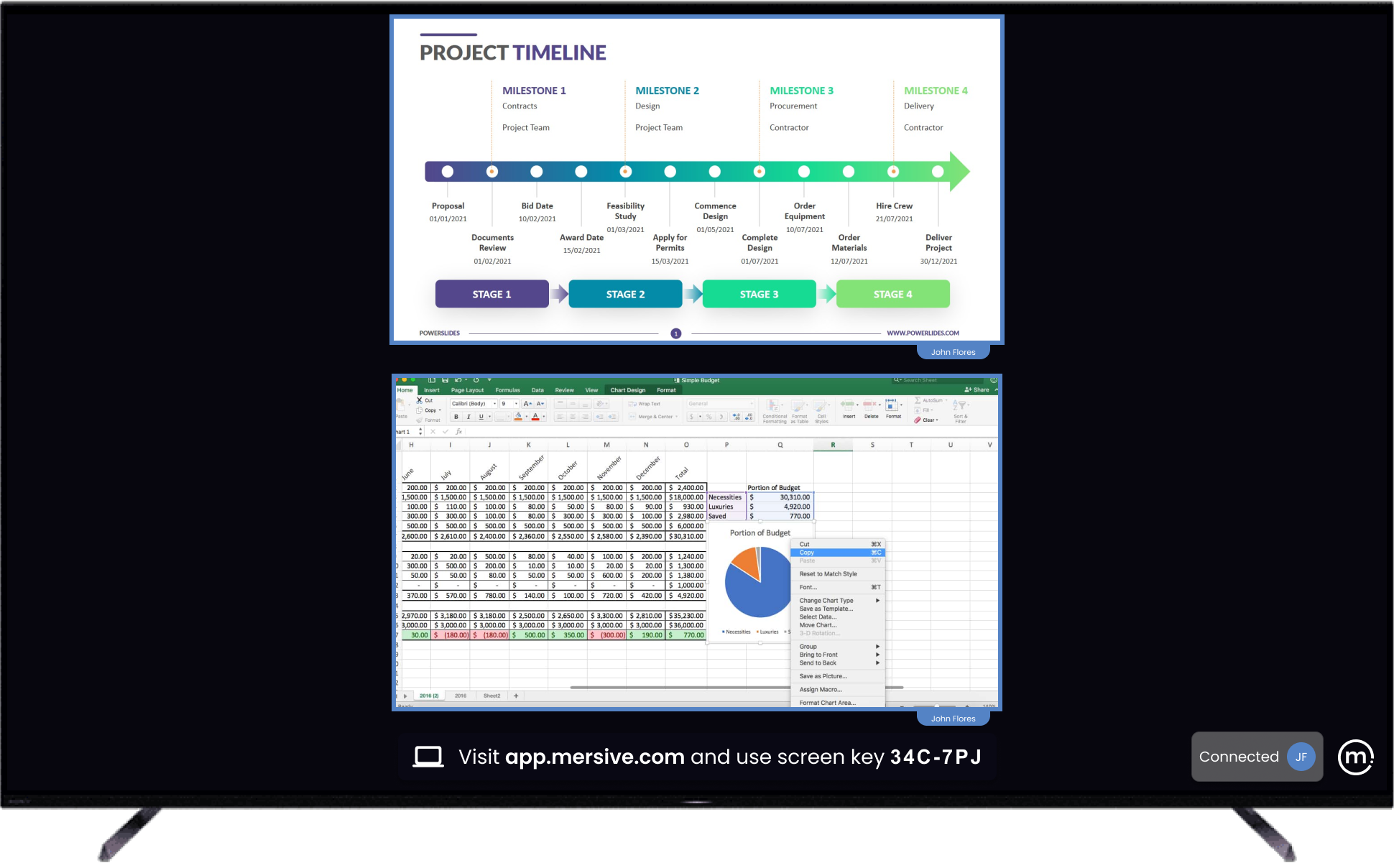
Display view
To add shares, click Add Share and select content, then click Share.
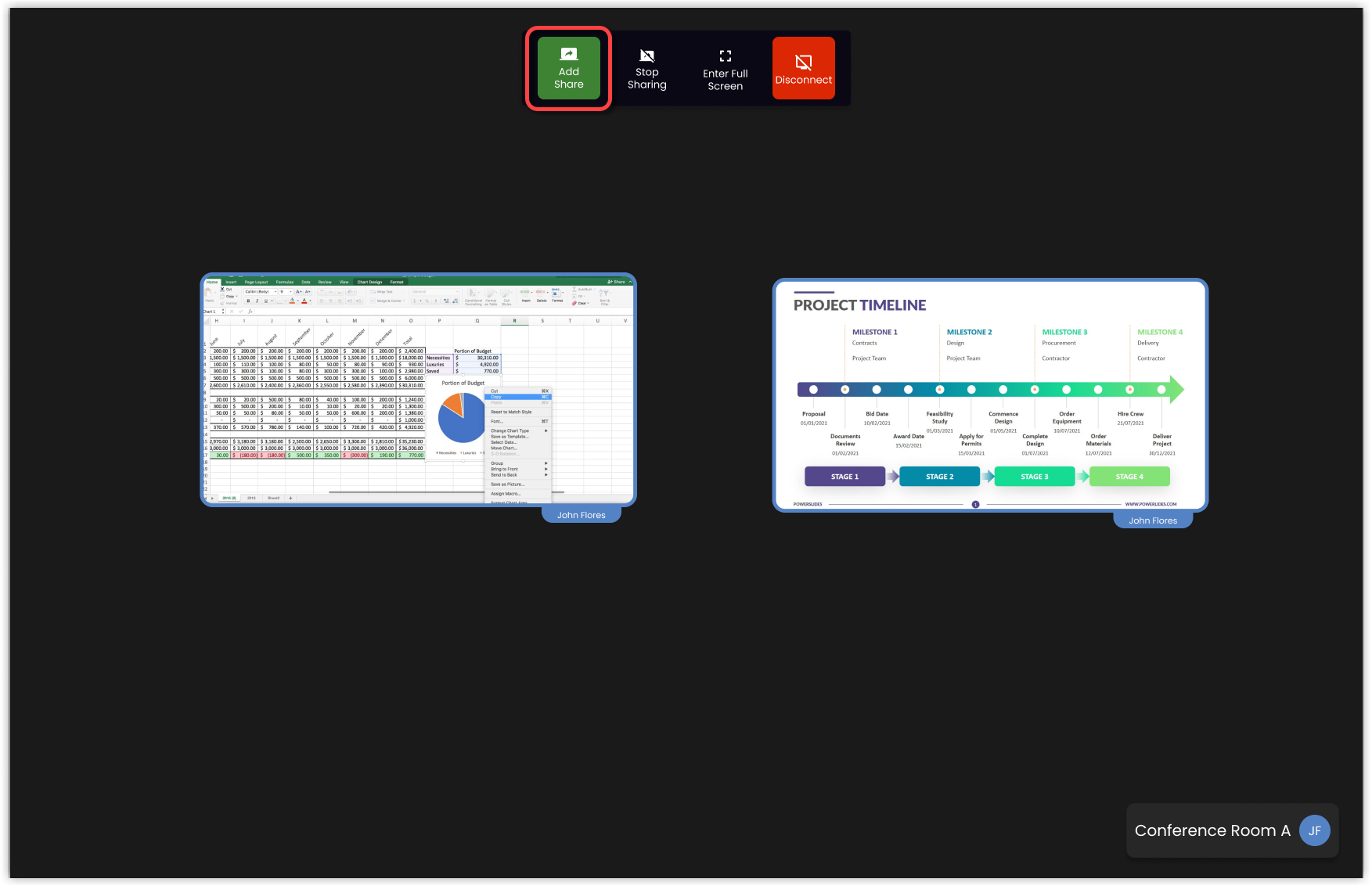
To switch the display to full screen, click Enter Full Screen. Click Exit Full Screen to return to normal view.
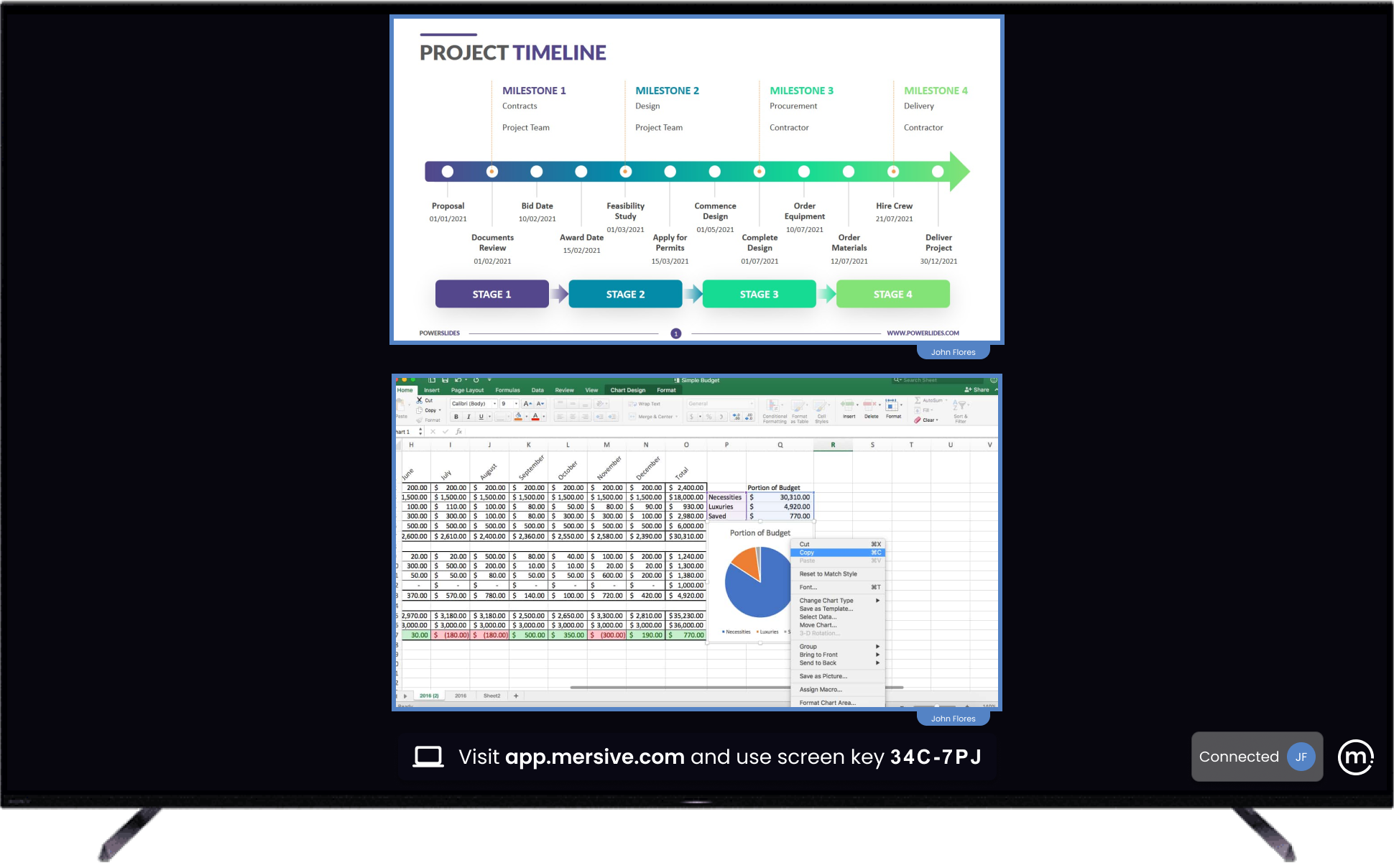
Normal view
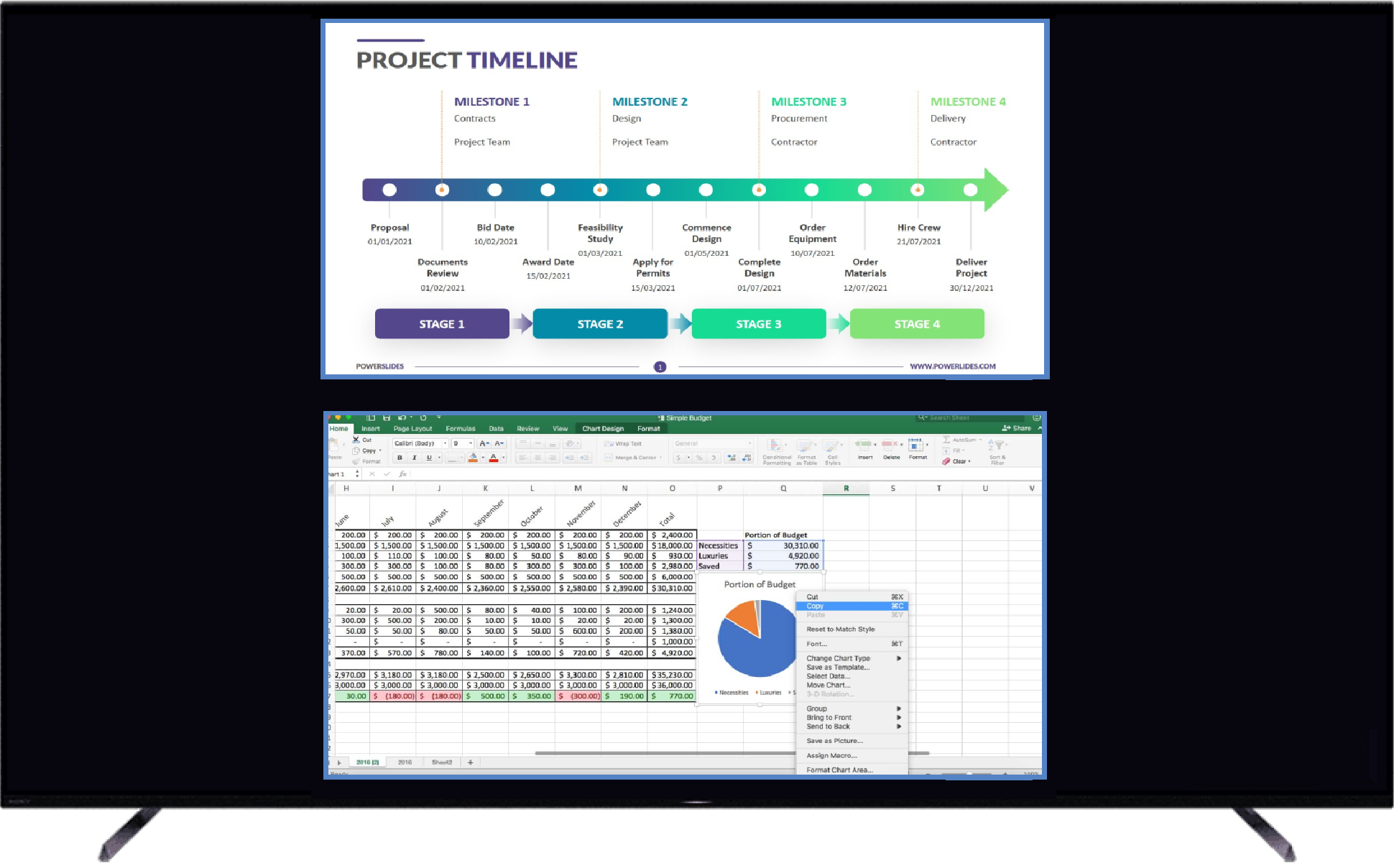
Full Screen view
To stop sharing, click Stop Sharing. Note: The connection remains, so you can resume sharing at any time.
To disconnect from the display, click Disconnect. Note: You will need to use the screen key and reconnect to resume sharing.