Getting Started with the Sharing Client
When you open your web browser and go to app.mersive.com, the first thing you’ll see is the Connect screen within the Mersive web client. The Connect screen needs two things to get started – a screen key and a name.
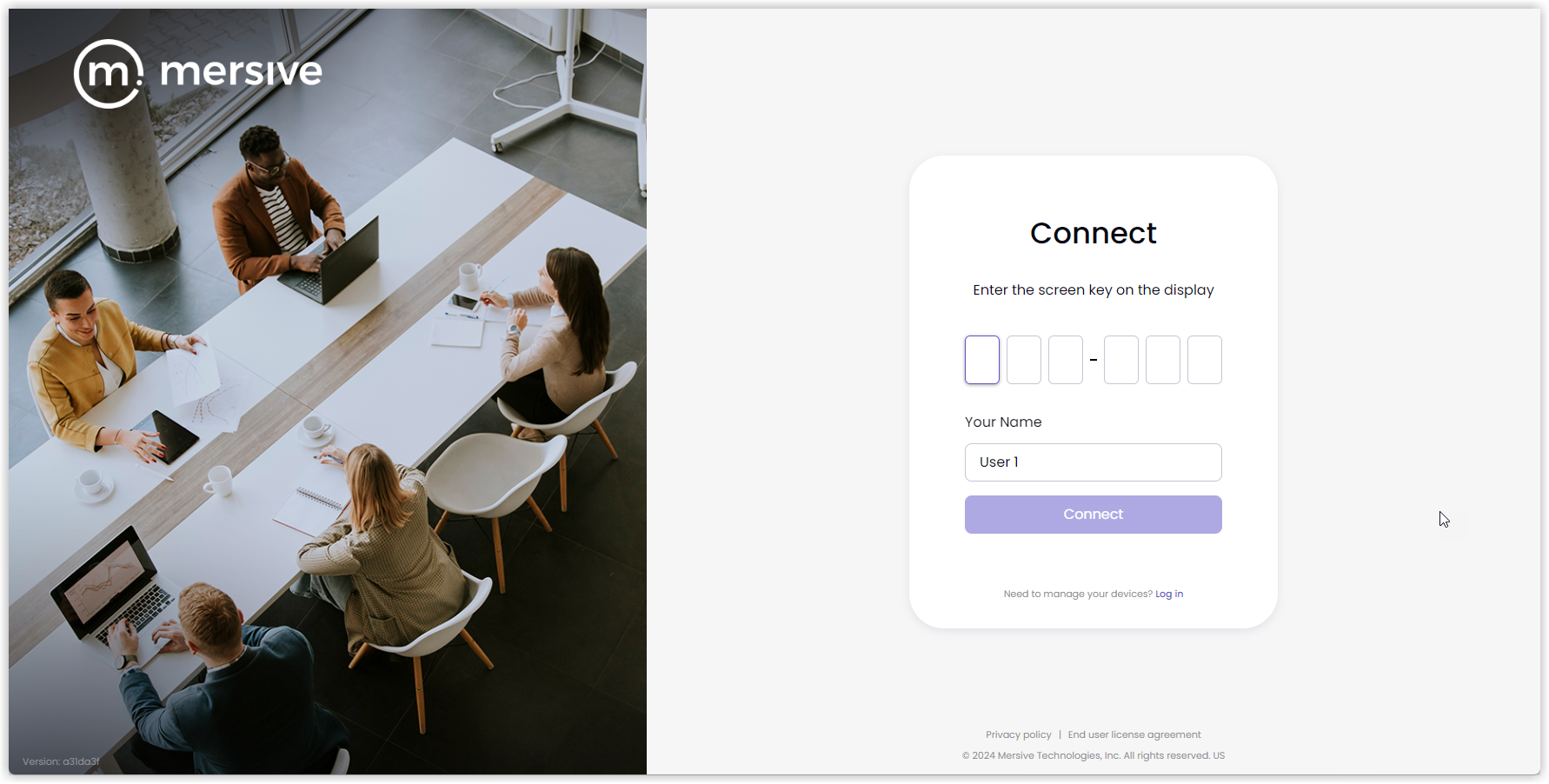 |
The screen key comes from the display. On the Idle screen (see above), the key is in the upper-left corner under the URL. When sharing is in progress, the key appears across the bottom of the screen. But if someone is sharing in full-screen mode, you won’t see the key at all. Screen keys are unique to the specific display, and they change every few minutes. So, if you disconnect, you will need the display’s current screen key to reconnect.
Your name will be displayed with the content you share. When connected, you will see an icon with your initials in the bottom right corner of the Idle screen. As additional users connect, their initials will appear there as well. As you share content, each content window will show your name at the bottom. Note: Your name can be between 3 and 50 characters long and must not contain words or phrases that are profane or considered offensive.
While there is a login link on the Connect screen, it’s for accessing the admin portal. You don’t need a Mersive account or any login credentials to use the sharing client.