Bulk Device Onboarding
Use Bulk Device Onboarding to add multiple Polaris devices to your environment simultaneously using a CSV file. Onboarded devices are added to the device inventory and typically appear in a Pending state until a plan is assigned.
Use Bulk Device Onboarding to quickly add multiple devices to your organization. By onboarding devices in batches, you can accelerate deployment, reduce repetitive setup tasks, and maintain a consistent configuration across your fleet.
Before You Begin
Before starting a bulk onboarding process:
Ensure you have administrator access to Polaris Cloud.
Prepare a CSV file containing the devices you want to onboard.
Verify that the CSV uses the required template and column structure.
Confirm that all device information is accurate before onboarding.
Note
Onboarding devices adds them to the device inventory. A plan must still be assigned before devices can be activated and managed.
Onboarding Devices
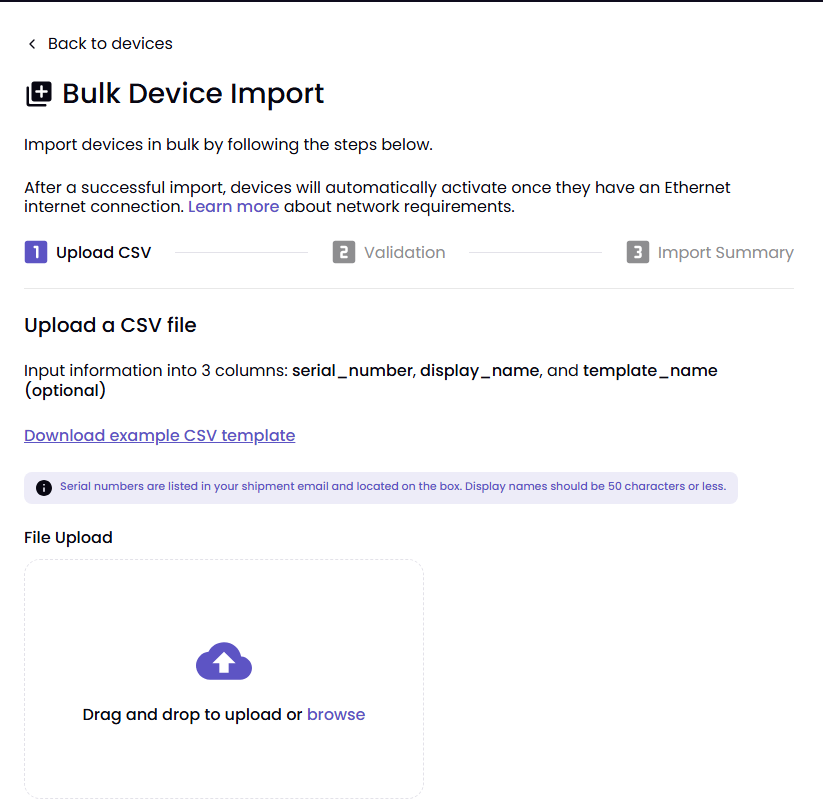
Open the Devices tab, navigate to the Add a Device dropdown, and select Bulk Device Import.
You can upload a file using either method:
Drag and Drop: Drag and release the CSV file onto the upload area.
Browse for a File: Select Browse, choose your file, and select Open.
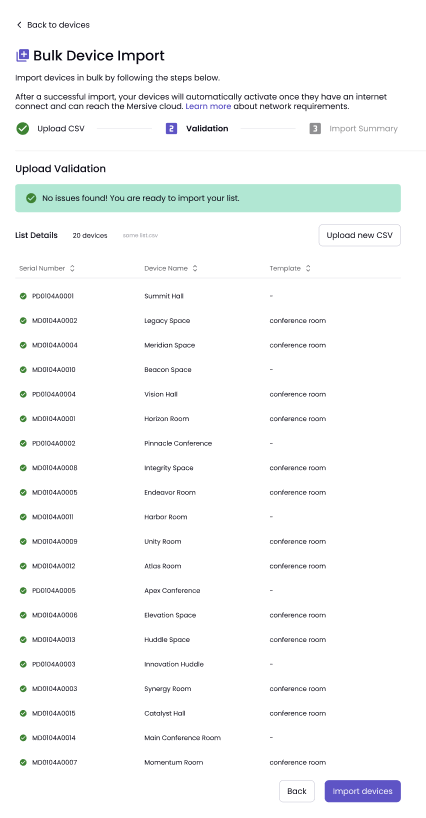
After the upload completes, the system validates the file and displays the onboarding results.
Note
See Validation Errors if errors are detected in your upload.
A summary displays for total devices processed, successfully validated devices, warnings, and errors.
Select Import Devices to proceed, and the activity indicator will display the onboarding status. Devices will be added to the system while validation and onboarding tasks are completed in the background.
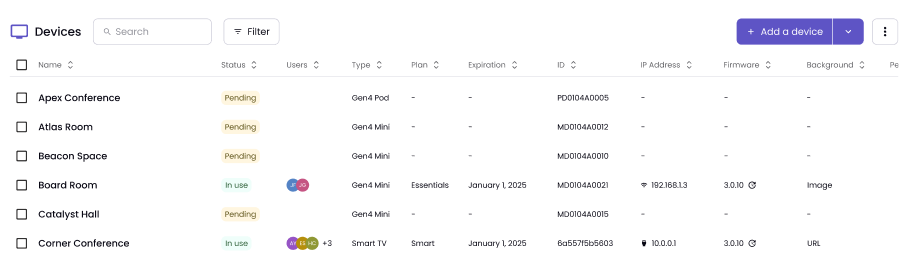
Once complete, a success notification will appear, along with the number of devices onboarded. The new devices will appear in your Devices list and can now be reviewed and assigned to plans.
Note
Newly onboarded devices typically appear with a Pending status until activation and plan assignment are completed.
Troubleshooting
Validation checks may include:
Required fields
Device identifiers
Column names
CSV formatting
Duplicate entries
Data integrity
If errors are detected, the onboarding results page highlights affected rows and fields.
Invalid File Type: The uploaded file is not a supported CSV file.
Incorrect Columns: The CSV does not contain the required column names or structure.
Invalid Data: One or more device records contain missing or improperly formatted values.
If some records contain errors but others are valid, the onboarding results page may allow you to continue. Use this option when you want to onboard valid devices immediately and correct remaining records later. When you proceed, valid devices are onboarded, invalid devices are skipped, and a summary identifies which records failed validation.