Mersive Plans
A Mersive-enabled display requires a plan to operate. While plans are purchased outside of the Polaris Cloud, it still provides some plan information and lets you assign plans to devices and reclaim unused plans. This section gives you a little background about how plans work and shows you where to look to find plan information.
When you initially purchase a plan, it will be associated with your email address or the Service To email address specifically. So you can log in to any of your organizations and assign the plan to a device. But once you do assign a plan to a device, that plan then becomes associated with and assigned to the organization containing the device. If you delete the device, the plan becomes available in that organization, but it is no longer available to the original Service To email address where you could log into any organization and use the plan.
How you obtain a plan varies depending on the device involved:
Essentials and Pro: Plans are included in the initial purchase of the device.
Plans have start and expiration dates, and these also vary by device type:
Smart: Plans will start automatically at midnight on the day after they were purchased. Plans expire one day after the end of the subscription term.
Essentials and Pro: Plans will start the first day of the month after purchase. Plans expire at the end of the subscription term.
Viewing Plan Information
You can find information about your plans in the Devices list in the admin portal. The Devices list is specific to the organization you’re logged into, so you’ll only see plan information that relates directly to that organization’s devices. If you have multiple organizations, switch between them to see all your devices.
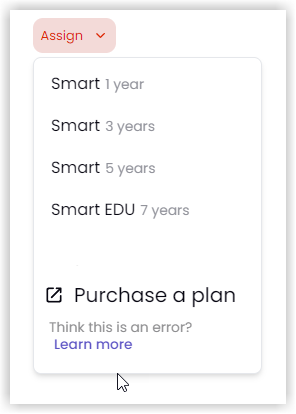
For each device that is active (Online or Offline status), the Devices list will show the plan type in the Plan column and the plan’s expiration date in the Expiration column. If a device does not have a plan (Assign status), you can view available plans by clicking the down arrow next to the Assign status message.
Note
When you view available plans this way, you will only see plans that work with that device type.
How to View Plan Information
To view plan information for your devices, do this:
On your laptop, open a web browser and go to app.mersive.com/admin.
Select your organization. The list of devices attached to this organization appears.
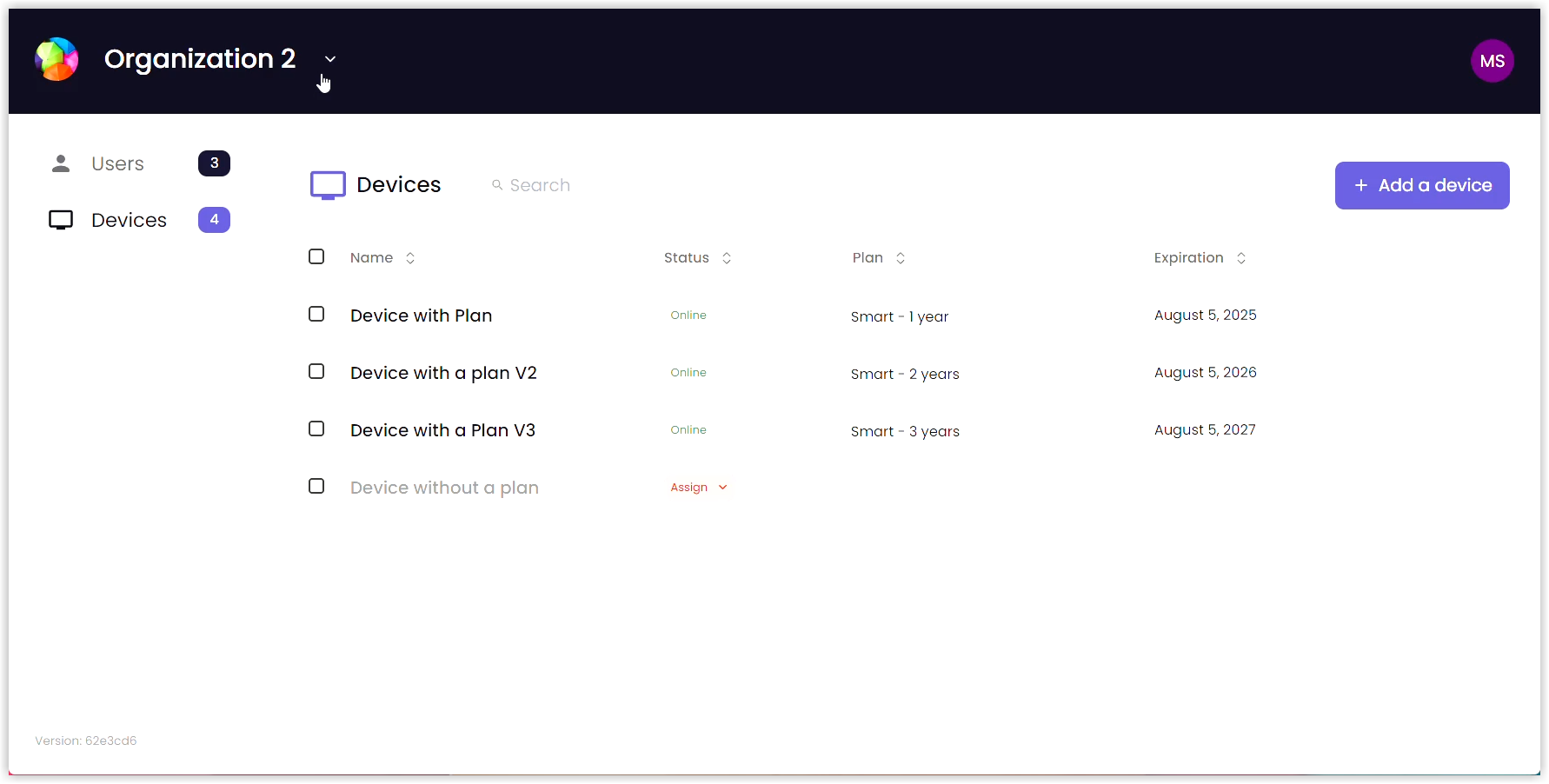
If the device has a status of Assign, click the down arrow to view available plans.
If the device has a status of Online or Offline, the Plan column shows the plan assigned to the device and the Expiration column shows the plan expiration date.
Assigning Plans
Skipping the step in the activation process where you assign or purchase a plan for the device adds the device to the Devices list in the admin portal without activating it. So, such devices will appear on the Devices list with an Assign status. If you have plans available for the device type, you can use the admin portal to assign a plan. Once a plan is assigned, you will be able to connect and share with the device.
How to Assign a Plan
To assign a plan to a device, take the following steps:
On your laptop, open a web browser and go to app.mersive.com/admin.
Select your organization. The list of devices attached to the organization appears.
Find the device and click the down arrow on the Assign status. A dropdown list of plans appears. Note: The list will show plans relevant to the specific device only.
Select a Plan from the list or, if there are no plans available, select Purchase a plan. Note: If you don't see a plan that you purchased, the plan may be for a different device type.
Click Assign to device.
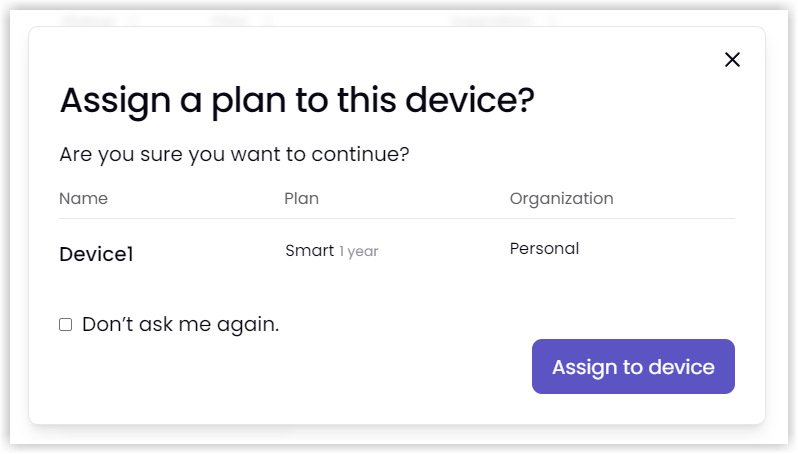
Once you assign a plan, the details will appear in the Plan and Expiration columns on the Devices list. If this does not happen, try refreshing the list.