Manage Security Certificates
By default, Solstice Pods are configured with a self-signed certificate from Mersive. However, for enterprises where this is insufficient, Solstice provides enterprise certificate management tools that give Solstice admins a centralized place for managing certificates in the Solstice Dashboard (Security tab > Certificate Tools). These tools allow Solstice admins to manage client-server communication certificates and 802.1x certificates within Solstice. With the certificate tools, you can do the following:
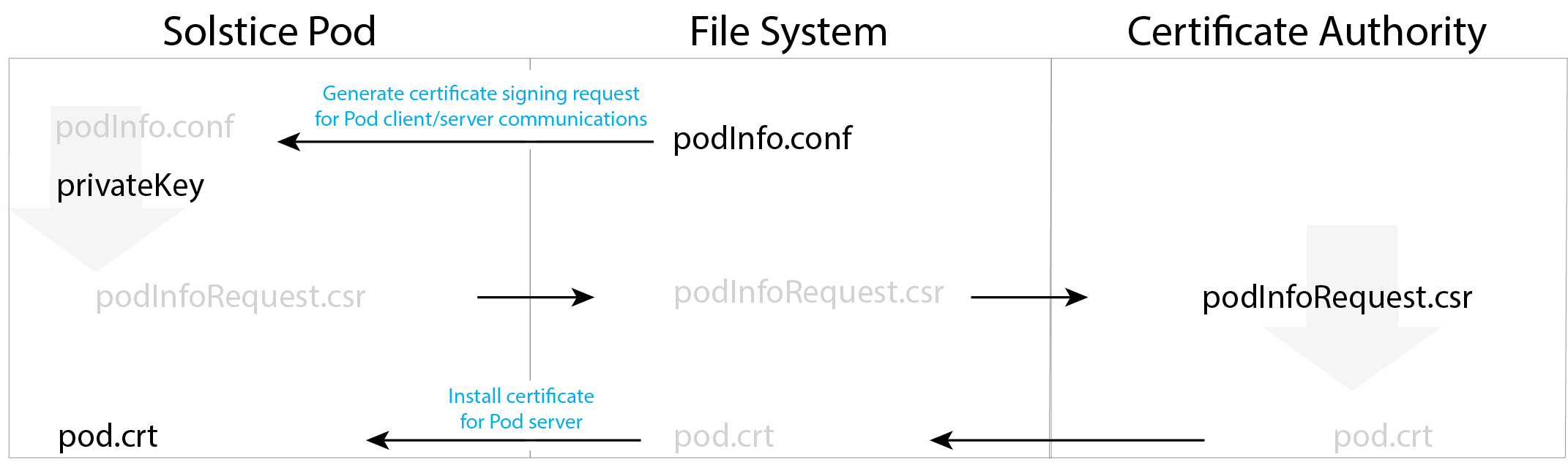
Generate a certificate signing request (CSR). This option generates a secret key that stays on the Pod as well as a .csr file that can be signed by your certificate authority. After signing, the certificate can be uploaded to the Pod.
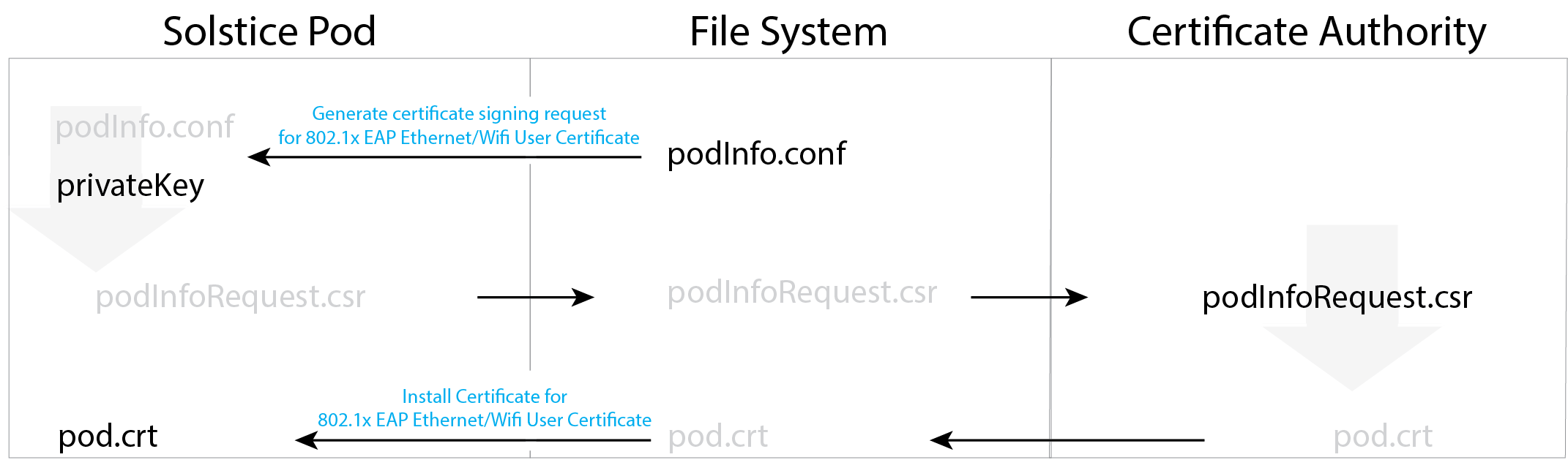
Generate a certificate signing request to create and add a unique 802.1x User Certificates to the Pod for 802.1x authenticated networks.
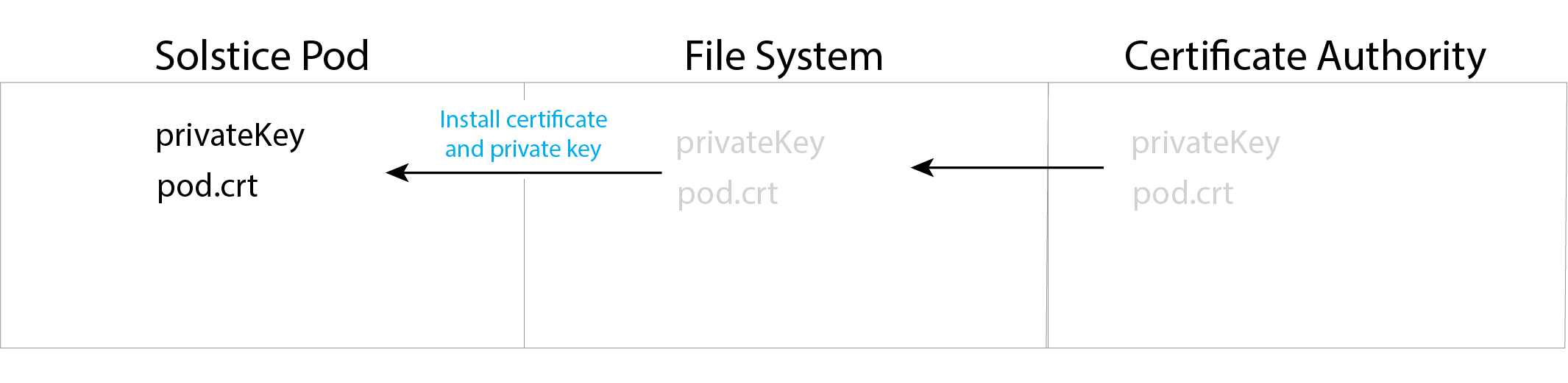
Upload both a signed certificate and private key to the Pod.
Limitations
Be aware of the following limitations of the Certificate Tools:
If you are using Install certificate and private key, password-protected PEM files and private keys are not supported.
Pod Certificate Support
Here are the certificate formats supported by Solstice:
Pod-server | 802.1x EAP-TLS for Ethernet and Wireless | |
|---|---|---|
Install certificate |
|
|
Install certificate and private key |
|
Pod Server:
The Solstice Pod web server requires both the Certificate and the Private Key to be installed. If using the Solstice Dashboard> Security> Generate certificate signing request to generate a secret Private Key that is stored on the Pod as well as a corresponding .csr file that will need to be signed by your Certificate Authority, then install the final Certificate in PEM or PFX format.
Alternatively, your Certificate Authority can provide both parts, in which case you will need to combine them into either a password-free PEM or PFX file before uploading.
802.1x User Certificate:
User authentication with 802.1x requires both the Certificate and the Private Key to be installed on the Solstice Pod.
The file should be installed as a PEM file, containing both parts and without password protection. The CA Certificate uploaded during 802.1x setup needs to be in the trust chain of the User Certificate. The Identity field in Solstice Dashboard> Network settings needs to match the Subject Name of the installed User Certificate.